
Business Insights
  • Home
  • Crypto
  • Finance Expert
  • Business
  • Invest News
  • Investing
  • Trading
  • Forex
  • Videos
  • Economy
  • Tech
  • Contact

Archives

  • February 2026
  • January 2026
  • December 2025
  • November 2025
  • October 2025
  • September 2025
  • August 2025
  • July 2025
  • June 2025
  • May 2025
  • April 2025
  • March 2025
  • February 2025
  • January 2025
  • December 2024
  • November 2024
  • October 2024
  • September 2024
  • August 2024
  • July 2024
  • June 2024
  • May 2024
  • April 2024
  • March 2024
  • February 2024
  • August 2023
  • January 2023
  • December 2021
  • July 2021
  • November 2019
  • October 2019
  • September 2019
  • August 2019
  • July 2019
  • June 2019
  • May 2019
  • April 2019
  • March 2019
  • February 2019
  • January 2019

Categories

  • Business
  • Crypto
  • Economy
  • Finance Expert
  • Forex
  • Invest News
  • Investing
  • Tech
  • Trading
  • Uncategorized
  • Videos
Apply Loan
Money Visa
Advertise Us
Money Visa
  • Home
  • Crypto
  • Finance Expert
  • Business
  • Invest News
  • Investing
  • Trading
  • Forex
  • Videos
  • Economy
  • Tech
  • Contact
I hate loud laptops. These 5 tweaks drastically reduce fan noise
  • Tech

I hate loud laptops. These 5 tweaks drastically reduce fan noise

  • July 22, 2025
  • Roubens Andy King
Total
0
Shares
0
0
0
Total
0
Shares
Share 0
Tweet 0
Pin it 0

Being a laptop reviewer, it’s not unusual for me to see an otherwise excellent laptop let down by a noisy fan that becomes a distraction during work or play sessions.

There are many reasons that can be the case. The most obvious is that the laptop model is just built that way; it overheats easily, and the fan is forced to compensate. Then again, it may be built well, and the laptop is just under heavy CPU load (most laptop fans will go bananas when encoding or running heavy applications).

The fan can also get noisy when it’s broken or faulty. Or it could just be poor settings configurations causing the issue. The latter is a best-case scenario, because the problem can be fixed or reduced with a few minor settings tweaks.

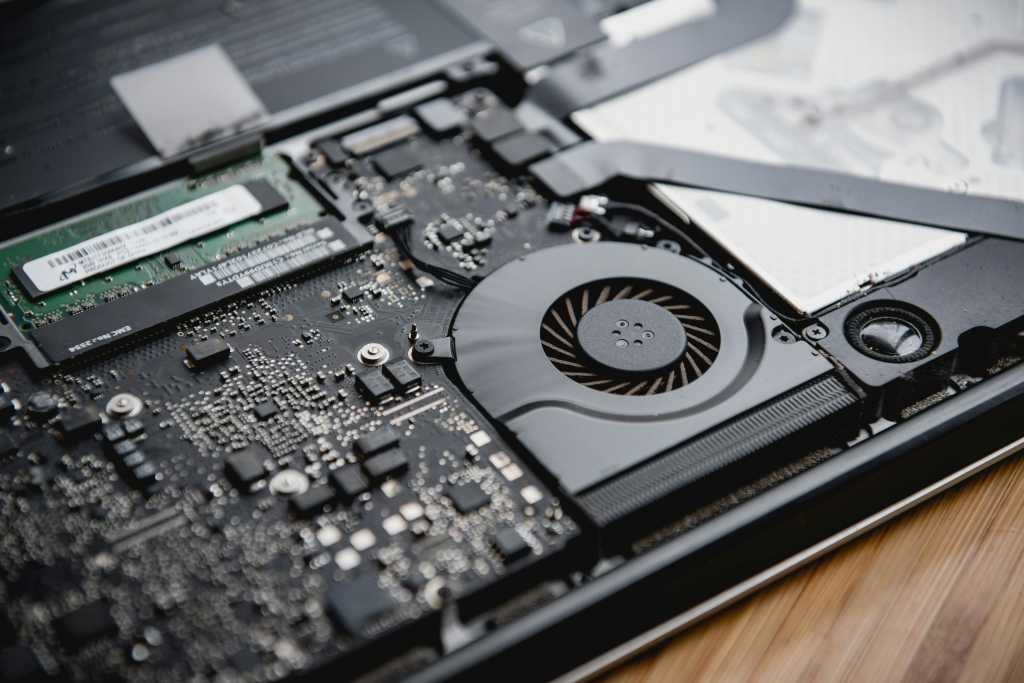
Pexels: Foysal Ahmed

Whatever the reason, you can test to see if your laptop is a shouter or not with a decibel meter app on your cellphone. If it’s clocking between 30 to 45 decibels — you’re fine, most laptops fall into this range. If it’s above that level when you’re just running lightweight software or applications, then you should try to take the sound down a notch — the steps below will help.

Just a note, though: Your fan’s job is to keep your laptop cool, so I wouldn’t advise trying to control your fan’s noise if your laptop is just working hard under heavy load to cool your laptop — it’s meant to do that, especially in gaming or content creation laptops. Preventing it doing its job will throttle performance and could even damage your hardware.

1. Adjust the power settings in Windows

Your laptop could be on a power setting that’s too high for the tasks it’s performing, thus causing your fan to also work too hard. To change that, open Windows 11 Settings and navigate to Power & Battery and drop the power mode down one level. So, if it’s on Performance Mode, drop it down to Balanced, or if it’s on Balanced drop it down to Best Power Efficiency.

2. Close any unnecessary background apps

If you have a bunch of background apps running that you aren’t using, your laptop’s CPU could be under needless load, causing your fan to work noisily harder than it should. To close the ones you don’t need, type Task Manager in Windows Search, then right-click on the apps or processes that you want to close and select End Task.

3. Change the fan speed in the BIOS

The BIOS is the firmware that directs many of the basic functions that the PC runs off, including the speed of your laptop’s fan. Changing the speed could reduce your fan noise.

To enter the BIOS, restart your laptop and as it’s booting press the designated BIOS key (either F1, F2, F10, Delete, or Escape). Then navigate to either Fan Control or Hardware Monitor. Choose the fan control method that matches your laptop’s fan — either DC (3-pin) or PWM (4-pin). This can be found in your laptop’s manufacturer specifications.

Then, see what preset your fan is set at — usually, Standard, Silent, or Performance — and change the setting to silent. Alternatively, you can create a custom fan curve to set your fan spinning at lower RPMs at different laptop temperatures. The fan curve defines the fan speed according to temperature rises in key components. Once you’re done, save and exit BIOS.

4. Check the settings in your laptop’s companion app
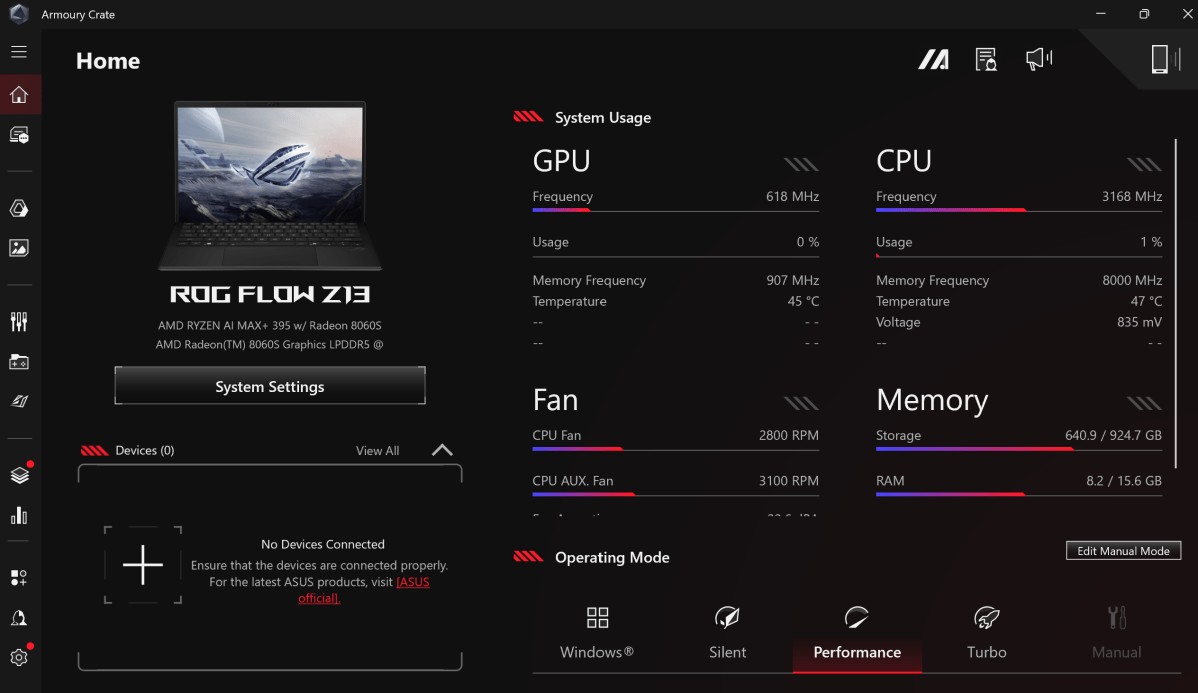
Asus Armoury Crate app

Asus’s Armoury Crate companion app allows you to modify your fan settings. 

Mark Hachman / Foundry

Fan settings in some laptop companion apps like Asus’s Armoury Crate and MSI’s Afterburner can override a laptop’s BIOS fan control and make the fan work harder than it needs to, thus making fans louder than they normally would be. So can the performance modes in these apps, especially modes like Turbo or Extreme Performance.

You have two options here: If you just want the BIOS to control your fan settings, then you should disable these settings in the app or uninstall it completely. Alternatively, you can do what I do and still use the apps, but just lower fan and performance settings when I don’t need the extra power.

Some apps like Asus’s Armoury Crate Fan Xpert 4 or SpeedFan also let you configure the laptop’s fan curve. Taking the time to do that can also do wonders to reduce the fan noise. You’ll need to search online for tutorials on how to do that specifically for the app you’re using.

5. Maximize airflow and cooling

Laptops need good airflow to prevent overheating, and most will automatically control their fan settings according to temperature rises. Ergo, if your laptop’s temperature rises, so will your fan speed and noise.

To give your laptop the best chance of airflow, use a good-quality laptop stand instead of placing it on a hard surface so that air can easily reach the vents. If your laptop overheats easily, a laptop cooling pad can help keep temperatures to a minimum and thereby also help keep your fan RPMs down.
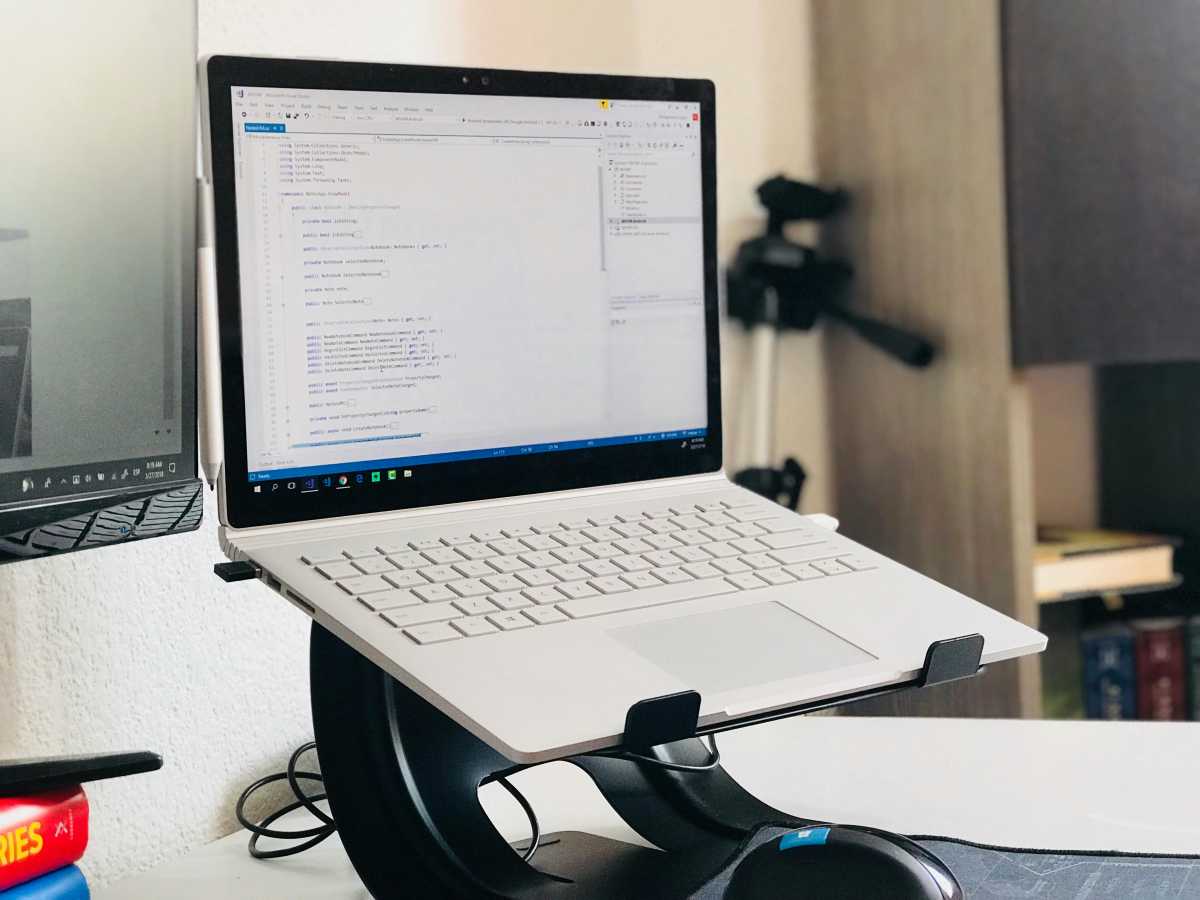
Laptop stand

Pexels: Eduardo Rosas

Dust and debris can also interfere with airflow and be a hidden cause of a noisy fan, so you should also wipe away any visible dust from on top of the vents with a wet wipe. Blow any more dust out of them with a compressed air blower.

If you feel confident enough, also open the laptop up from underneath and do the same around the fans. Just make sure the laptop is turned off and unplugged first.

Total
0
Shares
Share 0
Tweet 0
Pin it 0
Roubens Andy King

Previous Article
PEPE Sparks Google Frenzy With 300% Surge In Search Interest
  • Crypto

PEPE Sparks Google Frenzy With 300% Surge In Search Interest

  • July 22, 2025
  • Roubens Andy King
Read More
Next Article
Lowe’s and Home Depot just made big return policy changes
  • Trading

Lowe’s and Home Depot just made big return policy changes

  • July 22, 2025
  • Roubens Andy King
Read More
You May Also Like
Disney Settles FTC Complaint With YouTube Over Children’s Data Collection
Read More
  • Tech

Disney Settles FTC Complaint With YouTube Over Children’s Data Collection

  • Roubens Andy King
  • September 3, 2025
This HP laptop with an astonishing 32GB of RAM is just 1
Read More
  • Tech

This HP laptop with an astonishing 32GB of RAM is just $261

  • Roubens Andy King
  • September 3, 2025
Hot deal: Samsung Galaxy S25 Edge plummets to record-low price!
Read More
  • Tech

Hot deal: Samsung Galaxy S25 Edge plummets to record-low price!

  • Roubens Andy King
  • September 3, 2025
007 First Light looks like a hit, man
Read More
  • Tech

007 First Light looks like a hit, man

  • Roubens Andy King
  • September 3, 2025
Amazon’s Tomb Raider series will star Sophie Turner as Lara Croft
Read More
  • Tech

Amazon’s Tomb Raider series will star Sophie Turner as Lara Croft

  • Roubens Andy King
  • September 3, 2025
Orchard Robotics, founded by a Thiel fellow Cornell dropout, raises M for farm vision AI 
Read More
  • Tech

Orchard Robotics, founded by a Thiel fellow Cornell dropout, raises $22M for farm vision AI 

  • Roubens Andy King
  • September 3, 2025
Meta launches an Instagram app for the iPad, 15 years after its mobile app; it is slightly different than the mobile app, opening directly to a feed of Reels (Mia Sato/The Verge)
Read More
  • Tech

Meta launches an Instagram app for the iPad, 15 years after its mobile app; it is slightly different than the mobile app, opening directly to a feed of Reels (Mia Sato/The Verge)

  • Roubens Andy King
  • September 3, 2025
Acer Swift Air 16 laptop weighs less than 1kg, with a 16-inch screen, up to 32GB memory, and up to 1TB storage
Read More
  • Tech

Acer Swift Air 16 laptop weighs less than 1kg, with a 16-inch screen, up to 32GB memory, and up to 1TB storage

  • Roubens Andy King
  • September 3, 2025

Recent Posts

  • Economic Outlook 2026-2027 in Advanced Countries: Solidity test
  • Martin Lewis: ‘Audience shocked when I reveal investment returns’
  • Business owner day in the life 🍭 #sidehustle #passiveincome #vendingmachine #dayinmylife
  • Financial Free Kaise bane 📈💵 #motivation
  • German industry emerges from recession and is set up for a brighter outlook
Featured Posts
  • Economic Outlook 2026-2027 in Advanced Countries: Solidity test 1
    Economic Outlook 2026-2027 in Advanced Countries: Solidity test
    • February 9, 2026
  • Martin Lewis: ‘Audience shocked when I reveal investment returns’ 2
    Martin Lewis: ‘Audience shocked when I reveal investment returns’
    • February 8, 2026
  • Business owner day in the life 🍭 #sidehustle #passiveincome #vendingmachine #dayinmylife 3
    Business owner day in the life 🍭 #sidehustle #passiveincome #vendingmachine #dayinmylife
    • February 7, 2026
  • Financial Free Kaise bane 📈💵 #motivation 4
    Financial Free Kaise bane 📈💵 #motivation
    • February 6, 2026
  • German industry emerges from recession and is set up for a brighter outlook 5
    German industry emerges from recession and is set up for a brighter outlook
    • February 6, 2026
Recent Posts
  • North West Reveals New Hand Piercings, Sparking Buzz Online
    North West Reveals New Hand Piercings, Sparking Buzz Online
    • February 6, 2026
  • United States: Two-speed growth
    United States: Two-speed growth
    • February 6, 2026
  • Kevin Warsh, a QE opponent in favour of low rates to head the Fed
    Kevin Warsh, a QE opponent in favour of low rates to head the Fed
    • February 6, 2026
Categories
  • Business (2,057)
  • Crypto (2,023)
  • Economy (212)
  • Finance Expert (1,687)
  • Forex (2,016)
  • Invest News (2,432)
  • Investing (2,040)
  • Tech (2,056)
  • Trading (2,024)
  • Uncategorized (2)
  • Videos (966)

Subscribe

Subscribe now to our newsletter

Money Visa
  • Privacy Policy
  • DMCA
  • Terms of Use
Money & Invest Advices

Input your search keywords and press Enter.